
If you run an online store with WooCommerce, you probably know how important the Cart and Checkout pages are. But sometimes, when you try to open these pages, you might be greeted with a frustrating 404 Page Not Found error. Don’t worry; in this guide, we’ll go through all the possible reasons for this issue and exactly how to WooCommerce Cart and Checkout 404 Error, even if you’re not a developer.
Table Of Contents
- 1 What is the WooCommerce Cart and Checkout 404 Error?
- 2 How to Fix WooCommerce Cart & Checkout 404 Error – Step-by-Step
- 2.1 1. Restore Missing WooCommerce Default Pages
- 2.2 2. Assign the Pages Manually
- 2.3 3. Create the Pages Manually (If Needed)
- 2.4 4. Reset Your Permalink Settings
- 2.5 5. Check for Plugin Conflicts
- 2.6 6. Test with a Default WordPress Theme
- 2.7 7. Clear Browser & Site Cache
- 2.8 8. Repair or Replace the .htaccess File
- 3 CheatSheet to Fix the 404 error on Woocommerce Cart or Checkout Pages
- 4 Final Thoughts on How to fix woocommerce 404 problem
- 5 FAQs About Fixing the 404 Error on WooCommerce Cart and Checkout Pages (Step-by-Step Guide)
What is the WooCommerce Cart and Checkout 404 Error?
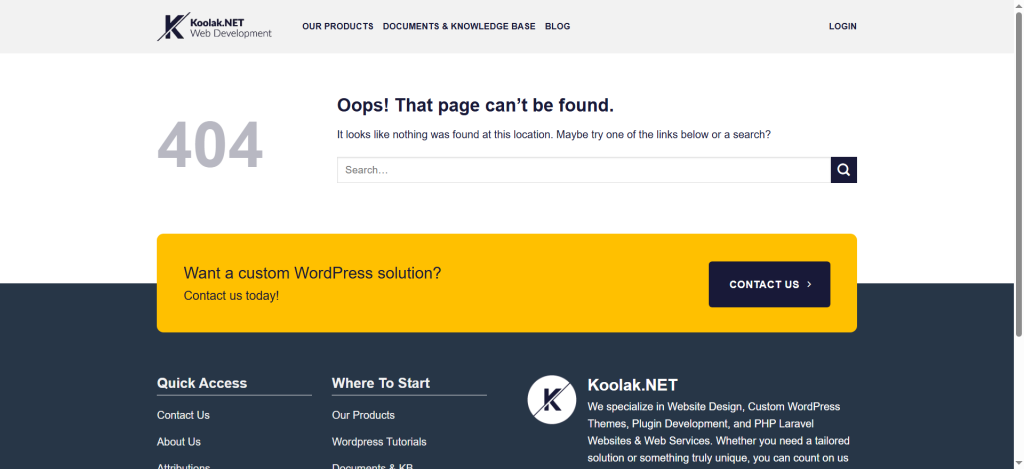
The 404 error means your browser couldn’t find the page it was looking for.
In WooCommerce, this often happens when:
- The default WooCommerce pages (Cart, Checkout, Shop) are missing or deleted.
- Your permalink settings are broken.
- A plugin or theme conflict is interfering with the page URL.
- The .htaccess file is misconfigured.
- Browser or plugin cache is serving outdated content.
This error doesn’t just annoy customers — it can hurt your sales and lead to abandoned purchases.
How to Fix WooCommerce Cart & Checkout 404 Error – Step-by-Step
1. Restore Missing WooCommerce Default Pages
I think this simple method will solve your issue. It only takes a few seconds and is very effective. Just follow these steps to fix the WooCommerce 404 cart and checkout error. When you install WooCommerce, it automatically creates key pages like Cart, Checkout, and Shop.
If these pages are deleted or edited, WooCommerce won’t know where to send customers.
How to restore them:
- Go to WooCommerce → Status → Tools in your WordPress dashboard.
- Find Create default WooCommerce pages and click Create pages.
- WooCommerce will recreate the Cart, Checkout, and Shop pages for you.
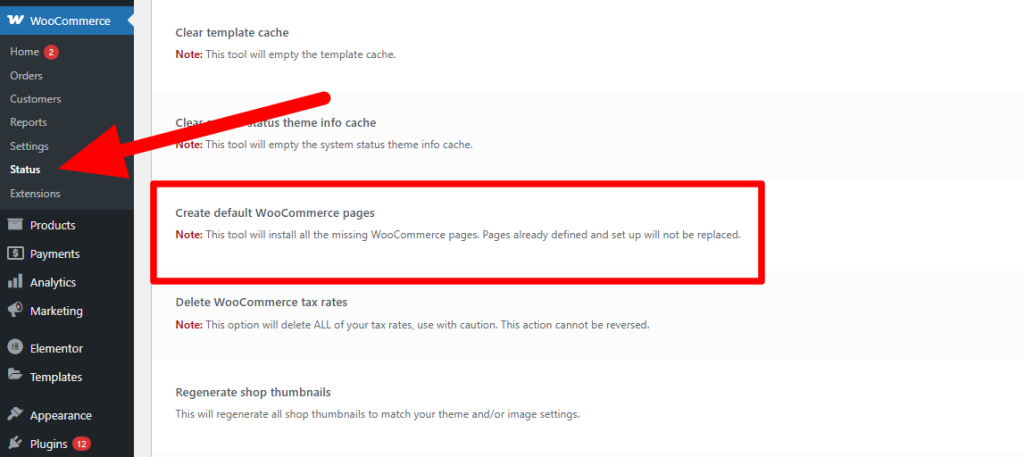
Tip: If the pages already exist but aren’t linked properly, see Step 2.
2. Assign the Pages Manually
In about 80% of cases, the issue occurs because the cart and checkout pages exist, but WooCommerce can’t locate them due to an error or a plugin conflict. To fix this, you need to reassign the WooCommerce cart and checkout to the correct pages.
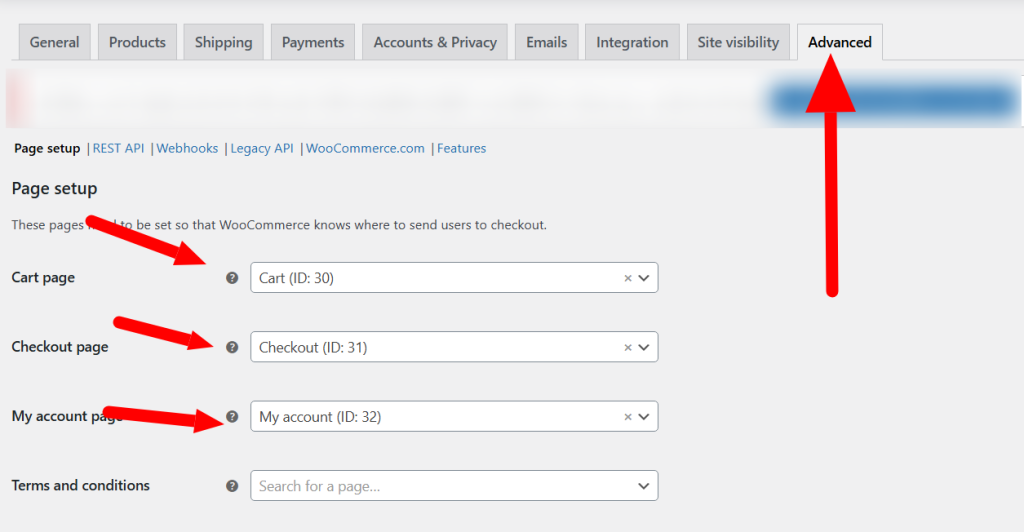
If WooCommerce recreated the pages but you still see the 404 error, you need to make sure they are correctly linked.
To do this:
- Go to WooCommerce → Settings → Advanced.
- Under Page setup, make sure:
- Cart page is linked to your Cart page.
- Checkout page is linked to your Checkout page.
- My account page is linked if you use it.
- Save changes.
3. Create the Pages Manually (If Needed)
If for some reason WooCommerce can’t create the pages, you can do it yourself:
1.Go to Pages → Add New.
2.Name the page Cart and insert this shortcode:
[woocommerce_cart]3.Name another page Checkout and insert:
[woocommerce_checkout]4.Save and then assign them in WooCommerce → Settings → Advanced.
4. Reset Your Permalink Settings
Broken permalinks are a very common cause of WooCommerce 404 errors. Sometimes, newly installed plugins modify the permalink structure and cause errors, such as 404 pages or broken links.
How to fix it:
- Go to Settings → Permalinks.
- Select Post name (or keep your preferred structure).
- Click Save Changes — even if you didn’t change anything.
- This refreshes your .htaccess file and fixes link routing.
if you recently changed the domain on your wordpress website, you can read a complete article about this process here.
5. Check for Plugin Conflicts
If your problem isn’t fixed by this point, it may be caused by a plugin conflict. some plugins can override WooCommerce settings and break page links.
How to test:
- Deactivate all plugins except WooCommerce.
- Check if the Cart/Checkout works.
- If it does, reactivate plugins one by one until you find the one causing the problem.
- Replace it with a compatible plugin or contact the developer.
6. Test with a Default WordPress Theme
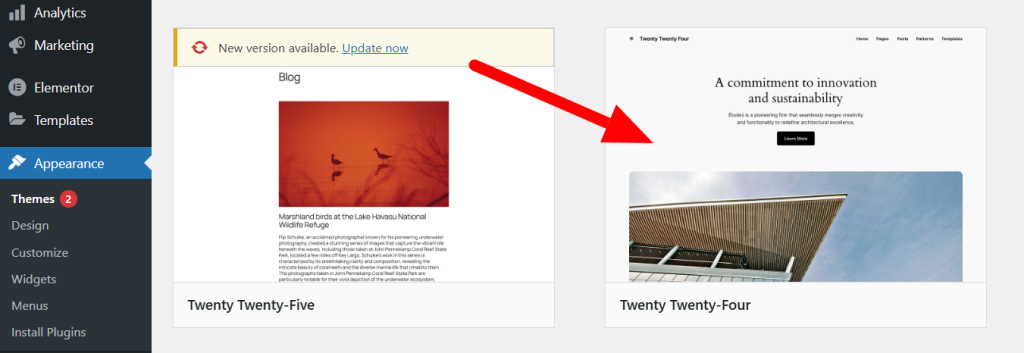
Themes can also cause 404 errors if they are not fully compatible with WooCommerce.
How to test:
- Go to Appearance → Themes.
- Switch to a default theme like Twenty Twenty-Three.
- Check if the pages work.
- If they do, update your theme or switch to one that supports WooCommerce.
7. Clear Browser & Site Cache
Sometimes, the 404 error is simply an old cached version of your page.
- Clear your browser cache.
- If you use caching plugins like W3 Total Cache or WP Super Cache, purge the cache.
- If your hosting has server-side caching (like LiteSpeed), clear that too.
8. Repair or Replace the .htaccess File
The .htaccess file controls how your site handles URLs.
If it’s corrupted, you might get 404 errors.
To reset it:
- Access your site via FTP or File Manager in your hosting panel.
- Locate the .htaccess file in the root directory.
- Replace its contents with the default WordPress code:
# BEGIN WordPress

<IfModule mod_rewrite.c>

RewriteEngine On

RewriteBase /

RewriteRule ^index\.php$ - [L]

RewriteCond %{REQUEST_FILENAME} !-f

RewriteCond %{REQUEST_FILENAME} !-d

RewriteRule . /index.php [L]

</IfModule>

# END WordPress- Save and re-upload the file.
CheatSheet to Fix the 404 error on Woocommerce Cart or Checkout Pages
| The Fastest way to fix the problem | go to Woocommerce->Status->Tools to reset the pages |
| Pages exist, but the 404 error won’t fix | Go to WooCommerce -> Settings -> Advanced and set the Pages. |
| Still Having the Problem? | Go to Settings->Permalinks and Save to Regenerate the Permalink Structure |
| Still No Luck? | Disable all the plugins and change to a wordpress default theme (For Example 2025 Theme) |
Final Thoughts on How to fix woocommerce 404 problem
The WooCommerce 404 error on Cart and Checkout pages is usually easy to fix if you go step-by-step:
- Restore or reassign default pages.
- Refresh your permalink settings.
- Check for plugin/theme conflicts.
- Clear cache and fix your .htaccess file if needed.
By following these methods, you’ll have your store running smoothly again — and most importantly, your customers will be able to check out without interruptions.
if the problem persists, you can always ask me in the comments section, i will respond you fast and help you to fix the problem quickly. you are always welcome to ask any questions in koolak.net.
FAQs About Fixing the 404 Error on WooCommerce Cart and Checkout Pages (Step-by-Step Guide)
Q: whats the main reason for 404 cart pages in woocommerce?
A: you cart page maybe deleted or the setting is not correct. you should check and fix both
Q: is it possible that plugin conflicts cause the 404 error in Woocommerce cart pages?
A: it's rare but possible. you should check other things first, if none of those solve the problem, you can check for plugin conflict as well.