How to Create Tables in WordPress EasilyUsing TablePress (Complete Guide)
5 min read
Your Are trying to Create Tables in WordPress? WordPress is one of the most powerful content management systems, widely used for building professional websites. One of its biggest advantages is the availability of various plugins that allow users to easily customize and manage their websites with flexibility. One such essential and popular plugin is The TablePress Plugin. This plugin enables users to create professional and visually appealing tables and embed them into their web pages. In this guide, you’ll learn how to install, use, and customize TablePress to Create Tables in WordPress effortlessly.
If you want to add a well-structured table to your WordPress site, you might consider using HTML manually. However, writing HTML code (using <table>, <tr>, <td>, etc.) can be time-consuming and frustrating. A much easier and efficient way to create tables in WordPress is by using the TablePress plugin. With TablePress plugin, you can create and manage tables right from your WordPress dashboard without writing a single line of code.
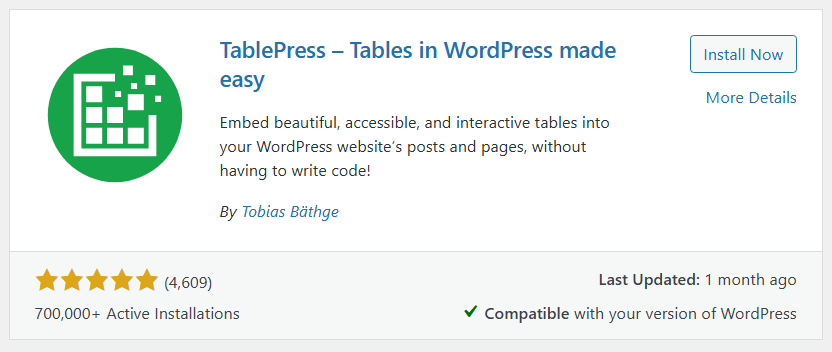
How to Install and Activate TablePress
Installing and setting up TablePress is quick and straightforward. Follow these steps:
Go to your WordPress dashboard.
Navigate to Plugins > Add New.
In the search bar, type TablePress.
Once you find the plugin, click Install Now.
After installation, click Activate.
Now that TablePress plugin is installed and activated, you’re ready to start Create Tables in WordPress Process.
How to Create a Table Using TablePress | Create Tables in WordPress
To create a table with TablePress, follow these steps:
In your WordPress dashboard, go to TablePress from the menu.
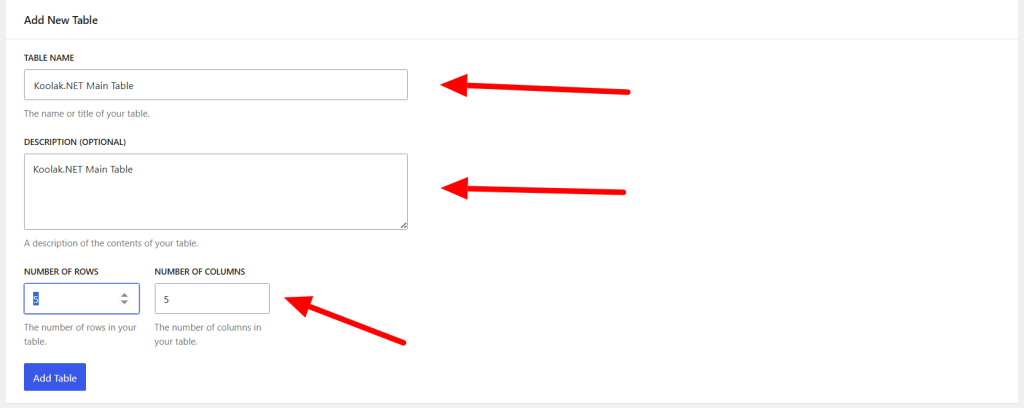
Click on Add New Table.
Enter a table name and specify the number of rows and columns.
Choose a table template and configure other settings as needed.
Click Save Changes.
You can edit the table details—such as the name, description, and size—at any time. TablePress allows you to make changes later, especially when adjusting the number of columns and rows and want to expand your table. Its solid codebase enables you to expand the table size without losing any data.
Adding Data to Your Table
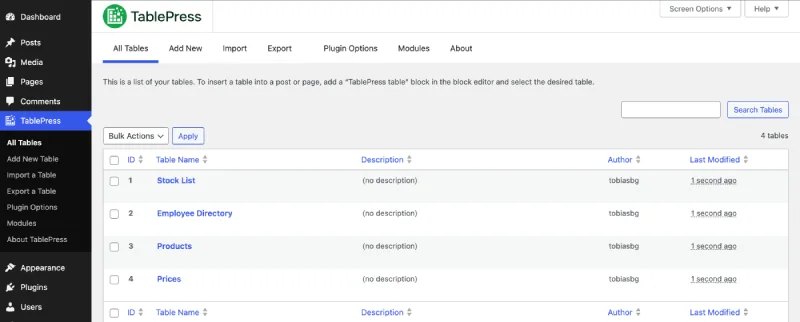
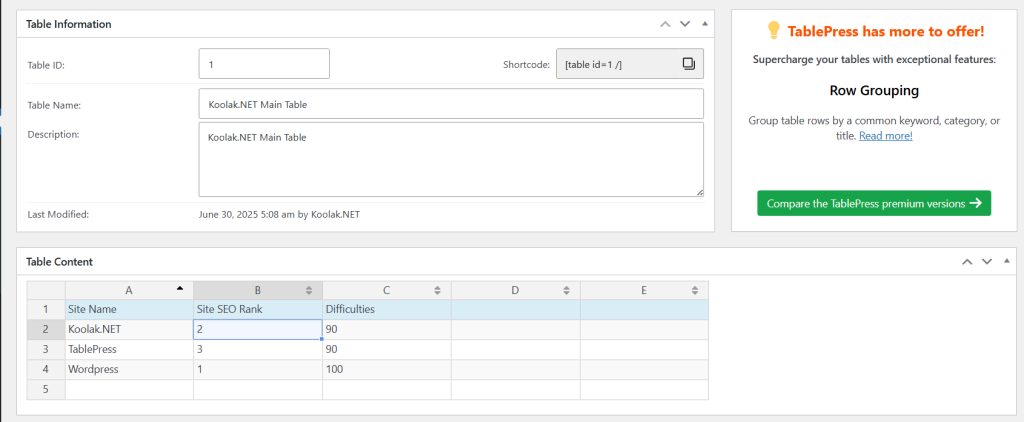
Once your table is created, you will redirected to edit table page, also you can enter data into the cells manually using the intuitive TablePress interface. If you need to edit a table, simply go to TablePress > All Tables, select the table you want to modify, and click Edit.
It has a good visual interface that allows you to easily edit the table, add images, set attributes, and so many more options on just one page. You can easily learn how to use the plugin because of its easy and good visual editor. Once you have done the settings, you can save the data by clicking on the Save Changes button. Also, it has a preview button too to review your changes on the actual table.
How to Insert Tables into WordPress Pages or Posts
After creating your table, you can easily embed it into any page or post:
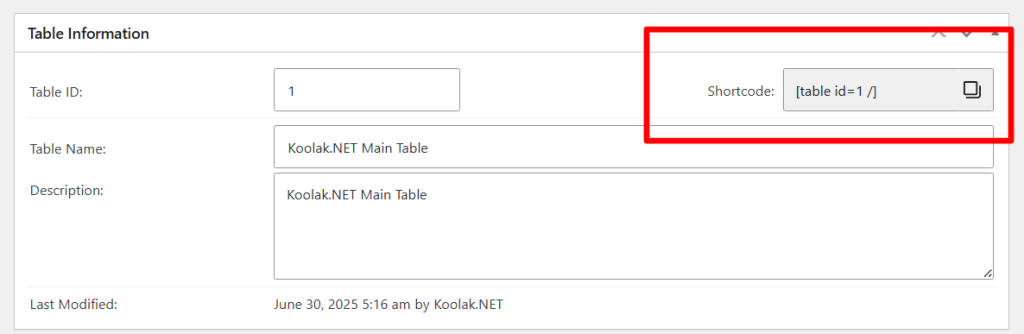
Using Shortcodes: Copy the shortcode displayed for your table and paste it into the content area of your page or post.
Example shortcode:
[table id=1]
(Replace 1 with your table’s ID)
Using Gutenberg Editor: If you use Gutenberg, add a new block and select TablePress, then choose your table from the list. or you can use shortcode widget too.
In Classic Editor there is a TablePress button over the Editor. or you can put shortcode directly into the page content
How to Insert Table in the Elementor? (TablePress Elementor)
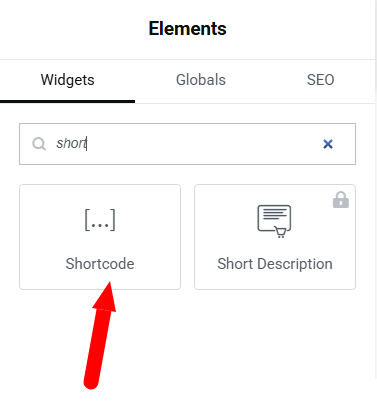
Elementor includes a powerful Shortcode widget that allows you to easily display your newly created table on any Elementor page. Simply open the desired page in your WordPress admin panel and click on the “Edit with Elementor” button.
Next, add the Shortcode widget to the page.
Now, paste the TablePress shortcode into the widget to display your table correctly within the Elementor layout. There’s no need to install any third-party plugins—this can be done using the default Shortcode widget available in both the free and pro versions of Elementor. Whether you’re looking for Elementor TablePress or TablePress Elementor integration, this is the easiest and most effective way to display tables seamlessly.
Customizing Your Tables Design in TablePress | TablePress CSS
TablePress provides various customization options to enhance the appearance and functionality of your tables in premium version, it has a default design for free version but you can always add css to change the style or color of you table, you can save custom css codes inside TablePress=>Plugin options Menu. or you can use a custom code plugin like Koolak Custom Code Plugin, for example if you want to change the fontsize or text color of a specific table, you can use this CSS code (replace N with your table ID)
TablePress is free to use but it has several powerful extensions that further enhance its functionality:
DataTables Extension – Adds sorting, filtering, and search functionality.
TablePress Importer – Allows you to import tables from external sources like Google Sheets to wp table press.
TablePress Responsive Tables – Makes tables fully responsive for mobile users.
TablePress Table Column Resizer – Lets you resize columns manually.
TablePress Chart Extension – Converts tables into graphical charts.
Conclusion
TablePress is one of the best WordPress plugins for Create Tables in WordPress and managing tables without coding. It simplifies the process of adding stylish, functional tables to your site while offering customization options to meet your needs. With additional extensions, TablePress can become even more powerful, making it an essential tool for any WordPress website. If you’re looking for a simple yet effective way to create tables, TablePress is the perfect solution. Start using wp table pressplugintoday and enhance your website’s data presentation!